
HP Original Toners
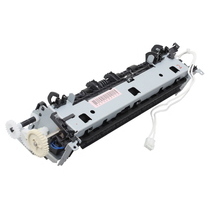
Fuser
Spares
HP Color LaserJet CP1210 Printer Series
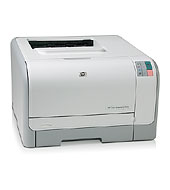
A colour laser printer in a very compact form with high quality output. The CP1210 series uses an in-line arrangement of four cartridges to give speeds of 8 pages per minute in colour and 12 ppm for mono print. These speeds are fairly fast for a small, entry level machine.
Although the native resolution of the print engine is just 600x600dpi, HP ImageREt 3600 allows HP to claim print-shop quality colour output
.
All the printers have a USB 2.0 interface.
- CP1215 - CC376A - No Network, Host based printing. 264MHz Processor 16MB RAM. HP ImageREt 2400. LED control panel
- CP1515n - CC377A - , Ethernet 10/100 networking, PCL6 and PostScript, 96MB RAM and 450MHz processor. HP ImageREt 3600. LCD 2 line control panel.
- CP1518ni - CC378A - Ethernet 10/0100 networking, PCL6 and PostScript, 450MHz Processor, 96MB RAM. HP ImageREt 3600. LCD control panel and accepts memory cards in CF, MMC, SD, xD adn Memory Stick formats.
The same print engine is the basis for a multifunction printer /copier
- CM1312MFP - CC430A- basic model with print and copy functions.
- CM1312nfi MFP - CC430A- Sophisticated model with ADF, Fax, network and memory card functions.
These Printers were released in April 2008. HP estimated the CP1215 street price as $299. UK Prices in early 2010 were around £150 ex VAT.
Printers in this series can be thought of as a replacement for HP's successful Color Laserjet 2600 series of entry level colour laser printers. The design is substantially different with the cartridges and belt arranged in a horizontal row rather than vertically and using a secondary transfer roller. The colour cartridges are smaller - just 1400 page average yield against the CLJ 2600 rated yield of 2,500 pages. HP are following a current industry trend in reducing the cartridge yields on entry level printers.
The CP1215 and CP1515 are very similar in general approach, appearance and layout to the CP2025. The CP2025 is twice as fast at 20 pages per minute, has double-sized 2,800 page color cartridges and is available with duplex and extra trays. Not surprisingly it is somewhat dearer with the base model costing about £250 ex VAT in June 2010.
Canon's LBP-5050 is very similar - the CP1210 series are another instance where the HP product is based on a Canon engine.
Control:
The CP1215 has a simplified control panel with 9 LED indicators, go and stop buttons. This limits what can be done via the control panel, most facilities are provided via the Microsoft Windows drivers and the "HP Toolbox" software. The service manual has a list of the light codes. Status and alert messages appear on the computer screen.
The CP1518ni has a 2 line LCD panel and menu buttons.
Most aspects of the printer can be controlled via the built in control panel on the CP1515n and CP1518ni . However it may be easier to adjust some settings via the "HP Toolbox FX" software.
The CP1515 and CP1518ni have an embedded web server which can be used to:
- View product control status information.
- Set the type of paper loaded in each tray.
- Determine the remaining life of all supplies and order new ones.
- View and change tray configurations.
- View and change the product settings.
- View and print internal pages.
- View and change network configuration.
- View support content that is specific to the current state of the product.
- Restrict access to color-printing features.
The printer's TCP/IP address will be obtained by DHCP and will be visible on printing a configuration page. To view the embedded web server type http://a.b.c.d into the address/URL field of a browser such as internet explorer replacing a.b.c.d with the "dotted quad" IP address. A typical address is "192.168.0.5" so the URL would be "http://192.168.0.5".
These printers also support HP Web Jetadmin. Jetadmin is normally installed on the network administrator's computer and can view the status of all HP printers on the Intranet.
Duty Cycle:
Up to 30,000 pages per month. More realistically the recommended monthly volume is 250 to 1,000 pages per month.
Print Speed:
Up to 12 pages per minute black and 8 pages per minute in colour. First mono page as fast as 26 seconds and colour in 32 seconds from ready. Typical job completion as fast as 55 seconds.
Print Resolution:
True resolution 600x600 dpi in black and colour. The CLJCP1215 has ImageREt 2400. Other printers in the series have HP ImageREt 3600, ColourSphere toner and HP Edge enhancement give good photographic quality. HP claim "print-shop quality color" in their brochures.
Paper Handling:
A4, 150 sheet input tray and a single-sheet priority feed slot. Media weights 60 to 176 gsm and up to 220gsm with HP Color Laser glossy photo paper.
Duplex:
No automatic option but there is support for manual duplex in the driver.
Processor:
264MHz processor with 16MB RAM on the CP1215 which uses host-based printing. 450MHz with 96MB RAM on other models.
Memory:
96MB installed as standard. The installed memory will usually be sufficient for word processing documents with a few pictures printed using PCL. Memory might need extending to handle complicated full page photographs, or documents with multiple fonts, or where the HP PostScript Level 3 emulation is used. Extra memory can also speed up printing of multiple documents by reducing the time needed to re-rasterise each page.
The CP 1510 series has a single DIMM Slot accessible at the rear right of the machine. DIMMs are available in 128MB and 256MB versions. Turn the power off and unplug any USB cable before changing memory and take anti-static precautions. The printer should recognize extra memory and the memory increase should be visible in the configuration page.
If more memory is installed the computer drivers need to be reconfigured to recognize and use it.
Interface:
Hi-Speed USB 2.0 for connection to a nearby computer. Ethernet 10/00 Base-TX via RJ45 connector.
The CP1518ni also has 1 PictBridge port, 4 Secure Digital/Multimedia Card slots
Network:
Ethernet 10/100 with TCP/IP protocols only. Apple Mac support via Rendezvous.
Print Languages:
The CP1215 is a host based printer. The CP1515 etc have HP PCL 6. HP PostScript level 3 emulation.
System Compatibility:
Microsoft Windows 2000, XP and certified for Vista. Apple Mac OS X V10.2.8 and later.
Linux Cups does not seem to provide a specific listing for these models (early 2010). The CP1210 being a host-based printer and relying on the Windows HP Toolbox utility (having no control panel) is probably not a good choice for Linux.
Power:
Laser printers draw a trickle of power in standby for the processor and memory. They draw much more power when printing as the fuser heats the page.
As usual with laser printers there are two models: for US/Canada/Japan, and rest of the world including the UK
- US model: - 100 to 127 V (+/-10%) 50 to 60 Hz (+/-2 Hz) Circuit capacity 4.5 Amp
- UK model: - 220 to 240 V (+/-10%) 50 to 60 Hz (+/-2 Hz) Circuit capacity 2.5 Amp
Power Consumption:
HP Color LaserJet CP1510 Series Printer: Printing 260W, Ready 12W, Sleep 11.2W, Off 0W.
Weight:
18.2KG
Consumables:
The printer takes four colour toner-drum cartridges and a transfer belt.
The cartridges load into the front of the printer. Open the front door of the machine and pull out the print-cartridge drawer. Each cartridge has a handle, pull the cartridge straight up to remove it. New cartridges need the orange plastic shield removing from their base and just drop into the drawer. Never touch the photosensitive drum at the bottom of the cartridge - fingerprints on the surface will cause print defects.
The black cartridge gives 2,200 page life at 5% cover and the colour cartridges just 1,400 pages. The printer ships with introductory cartridges that have limited capacity. HP suggest in their publicity material that these printers can produce black print for much the same price as dedicated mono printers. Given the very small size of the cartridges that might be a bit subjective? Compared with small mono laser printers it could be true.
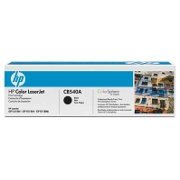
CB540A - Black Print Cartridge, yield 2200 pages at 5% cover. CP1215, CP1515, CP1518, CM1312MFP - CB540A
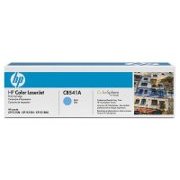
CB541A - Cyan Print Cartridge, yield 1400 pages at 5% cover. CP1215, CP1515, CP1518, CM1312MFP - CB541A
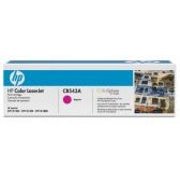
CB543A - Magenta Print Cartridge, yield 1400 pages at 5% cover. CP1215, CP1515, CP1518, CM1312MFP - CB543A
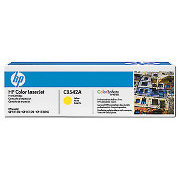
CB542A - Yellow Print Cartridge, yield 1400 pages at 5% cover. CP1215, CP1515, CP1518, CM1312MFP - CB542A
The print cartridges use HP ColorSphere toner. Cartridge recyclers had some initial difficulty matching the cartridge yield, Future Graphics were able to market a 5 micron chemically grown toner quickly but were 10% short of HP's material on yield. Conventionally milled toners are likely to give poor print with these machines due to irregular particle size and uneven charge characteristics.
Fuser:
The fuser in a laser printer makes the toner powder adhere to the print media using a combination of heat and pressure. Fusers are designed to have a fairly long life but they do ultimately fail.
Fusers can fail suddenly: a power surge might damage the heating element or a stray object passing through the printer might pierce the heat transfer foil for instance.
Fusers also have a limited life because the heating surface is non-stick but after many thousands of pages the material loses its properties.
RM1-4431 - Fuser for CLJ_CP1215, CP1518 and CM1312MFP 220-240 Volts - RM1-4431-000CN
RM1-4430 - Fuser for CLJ_CP1215, CP1518 and CM1312MFP 110 Volts - RM1-4430-000CN
Changing the fuser requires removal of the left and right cover, control panel module, rear-side cover, rear-upper cover, rear door and rear lower cover and the top cover. The fuser itself is held by a couple of screws and several wire-harness connectors. People who are not familiar with computer engineering may need a service technician to do the job for them. Instructions are in the service manual.
Notice that the fuser temperature is influenced by controls for paper curl, heavy cover, flap sealing and Less/More fusing. See p45 of the service manual.
Image Transfer Belt
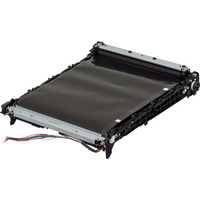
RM1-4436 Intermediate Transfer Belt (ITB) assembly for the CP1215, CP1515, CP1518Ni and CM1312 MFP RM1-4436-000CN
The transfer belt takes the single colour images from the four photoconductor drums in each of the toner cartridges and makes one overall image. When the image is complete the secondary transfer roller moves it onto the print media.
The image transfer belt is gradually worn out with use and needs periodic replacement. Print quality suffers if the transfer belt has excessive marking. Be careful not to touch the shiny surface of the belt itself as finger marks cause dropouts in the print.
Changing the ITB requires removal of all the cartridges and the cartridge drawer. There are two cartridge drawer retainers which are rotated to allow the entire drawer to be removed.
The right cover, left cover and rear-side cover also need to be removed to allow the wire-harness for the ITB to be disconnected. People who are not familiar with computer engineering may need a service technician to do the job for them. Instructions are in the service manual.
Maintenance Kits:
Maintenance kits comprise a fuser and a paper feed repair kit. HP themselves generally don't seem to provide maintenance kits for the Color Laserjet series. The argument may be that the wear rate on the fuser depends on page cover whilst the pickup and feed rollers are not affected so the fact that the fuser needs replacing does not imply that the feed rollers also need attention.
If you do have both a fuser problem and paper feed problems then buy the fuser and the feed rollers.
Spares:

The spares most likely to be needed are the pickup and feed rollers. The list given here covers all the printers in the series.
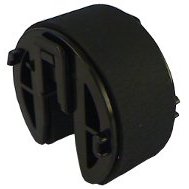
RM1-4426 Paper pickup roller D-shaped. Used in the CP1215, CP1515N, CP1518NI, CM1312, CM2320 and CP2025. - RM1-4426-000CN
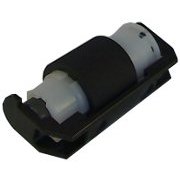
RM1-4425 Feed/separation roller. Used in the CP1215, CP1515N, CP1518NI and CM1312. RM1-4425-000CN
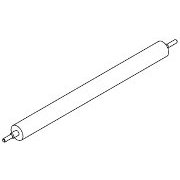
RM1-4445-Secondary transfer roller for the CP1215, CP1515N and CP1518NI and CM1312 MFP. RM1-4445-000CN
See below for instructions on how to change the rollers.
Trays:
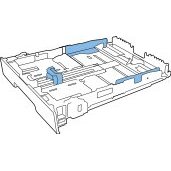
Paper trays are fairly complicated plastic assemblies and often get damaged.
RM1-4439 Tray (cassette) assembly for the CLJ CP1210 series (ie the CP1215) - RM1-4439-000CN
RM1-4440 Tray (cassette) assembly for the CLJ CP1510 series - CP1515N and CP1518NI. - RM1-4440-000CN
RM1-4922 150 sheet multipurpose paper input tray (cassette) for the CLJ CM1312 MFP and CLJ CM1312nfi MFP. RM1-4922-000CN
RM1-4428 Cartridge tray (drawer) assembly for the CP1215, CP1515, CP1518NI and CM1312MFP. RM1-4428-000CN
Paper Handling for Scanner:
The ADF for the scanner on the CM1312 Multi Functional Printer wears out in the same way as other printer rollers. The assembly can be replaced.
CC431-60131 Automatic document feeder (ADF) assembly for the CM1312 MFP and CM1312nfi MFP. (HP say no longer Supplied) - CC431-60131
Electronics
Printer electronics are normally robust and reliable.
RM1-4468 - Control panel assembly. For the Color LaserJet CP1210 series printer. RM1-4468-000CN
RM1-4469 - Control panel assembly - For the Color LaserJet CP1510 series printer CP1515N and CP1518NI. RM1-4469-000CN
RM1-4813 - DC Controller PC board for the CP1210 series CP1215. RM1-4813-050CN
RM1-4811 - DC controller PC board for the CP1515N and CP1518NI RM1-4811-050CN
rM1-5313 DC controller PCA assembly for the CM1312MFP and CM1312nfi MFP. - RM1-5313-050CN
RM1-4816 Low Voltage Power Supply 220-240VAC Operation for the CP1215, CP1515N and CP1518NI printers. RM1-4816-000CN
RM1-5316 Low voltage power supply assembly 220-240VAC Operation for the CM1312MFP and CM1312nfi MFP. RM1-5316-000CN
RM1-4777 Power supply - For the 220-240VAC (+/- 10%) fusing assembly CP1215, CP1515N, CP1518NI, CM1312MFP and CM1312nfi MFP. RM1-4777-000CN
RM1-4689 - High voltage power supply PC board assembly for the CP1215, CP1515N, CP1518NI and CM1312 MFP. RM1-4689-000CN
CB505-60001 - Formatter (Main logic) board - For the Color LaserJet CP1210 series printer - CB505-60001
CB479-60001 - Formatter (Main logic) board - For the Color LaserJet CP1510 series printers CP1515N and CP1518NI CB479-60001
CC397-60001 - Formatter (main logic) board - For base model CM1312MFP only. CC397-60001
RK2-1955 Flexible flat cable connecting the DC controller. Used in the CP1215, CP1515, CP1518NI, CM1312MFP and CM1312nfi MFP. RK2-1955-000CN
RC2-3108 Left side cartridge tray clamp for the CP1215, CP1512N, CP1518NI and CM1312MFP RC2-3108-000CN
RC2-3109 Right side cartridge tray clamp for the CP1215, CP1512N, CP1518NI and CM1312MFP RC2-3109-000CN
CC430-00027 Formatter bracket for the CM1312MFP. For base model only. CC430-00027
CC430-60109 Scanner lid assembly - Top door that covers the scanner glass - For base model CM1312MFP only
CC430-67903 Flatbed scanner assembly for Color LaserJet CM1312 MFP - Includes flatbed scanner frame and glass
Errors & Bugs
HP's Service Manual suggests calibration as the first step in dealing with print quality problems. There are several parameters (mostly voltages) which the printer can adjust to control the quantity of toner transferred at each step of printing. The printer uses density and registration sensors to automatically calibrate for operation. Automatic calibration runs every 48 hours by default. To set a calibration away:
With the printer plugged in and connected via USB or the network. Open the Toolbox software. Click Device Settings and Print Quality In the area for Color Calibration select Calibrate Now. Click Apply and the printer will run its calibration process.
The CP1210 and CP1510 Series User Guides have a substantial section on problem solving. HP tends to restrict service manuals to engineers who have undertaken their training courses.
If the automatic calibration doesn't succeed or the printer reports an error the following information may be helpful.
Printing occurs in the sequence Yellow, Magenta, Cyan and Black onto the Intermediate Transfer Belt. The belt runs towards the front of the printer, round and back to the rear where it is contacted by the secondary transfer roller. The transfer roller strips the image off the belt and onto the page. A cleaning brush then removes surplus toner.
Problems relating to the rollers are usually repetitive. The following list derived from the Service Manual gives the circumference of the rollers and the pitch of repetitive faults.
- 22.3 mm ( 0.87 in) - Developer roller (one rotation) - Appears in a single colour
- 26.7 mm ( 1.05 in) - Charger roller - Appears in a single colour
- 28.5 mm ( 1.12 in) - Developer RS roller (one rotation) - Inside developer, supplies and removes toner
- 44.0 mm ( 1.73 in) - Registration roller
- 56.5 mm ( 2.22 in) - Fuser film (one rotation) - Appears in all colours
- 56.8 mm ( 2.23 in) - Fuser pressure roller (one rotation) - Appears in all colours
- 57.0 mm ( 2.24 in) - Transfer roller - Appears in all colours
- 69.0 mm ( 2.71 in) - Cartridge-to-cartridge spacing - Distance between each color OPC.
- 75.8 mm ( 2.98 in) - OPC drum (one rotation) - Appears in a single colour and might be dark or light
- 633.6 mm ( 24.94 in) - Intermediate Transfer Belt (ITB) - The ITB is longer than a page so inspect several pages
Error Messages
- 10.XXXX Supply error The e-label for one of the print cartridges cannot be read or is missing.
- 10.0000 black e-label
- 10.0001 = cyan e-label error
- 10.0002 = magenta e-label error
- 10.0003 = yellow e-label error
- 10.1000 = black e-label is missing
- 10.1001 = cyan e-label is missing
- 10.1002 = magenta e-label is missing
- 10.1003 = yellow e-label is missing
- 49 Error, Internal Error
- 50.xx, Fuser Error
- 51.XX Error, Internal hardware error
- 52.xx, Scanner Error
- 54.XX Error, Internal Sensor Error
- 55.X Error, Internal Error
- 57 Fan Error
- 59.X Error, Motor Error
- 79 Error, Internal Firmware Error
- 79 Service Error, An incompatible DIMM is installed
Look in the status log for more details on these errors.
The suggested first attempt cure for many of these errors is to turn the printer off, wait 30 seconds, then turn it back on. If the fault can be cleared the startup process may do it.
- <Color> in wrong position, A print cartridge is in the wrong slot (they run yellow, magenta, cyan black)
- Device Error Press [OK], Press OK to resume the job.
- Front Door Open, Close It.
- Fuser Error, Turn off and wait 30 seconds. If that doesn't work turn off and wait 25 minutes.
- Genuine HP Supply Installed, Brief message seen when an e-label is read.
- Incorrect supplies, More than one cartridge is in the wrong slot.
- Install <Color> Cartridge, The cartridge is not present or not correctly seated.
- Invalid Driver Press [OK], An incorrect driver is being used.
- Jam in <location>, The printer has detected a paper jam.
- Load Paper<type>, Tray 2 has no paper
- Load tray # <TYPE> <SIZE>, A tray is configured for the type and size a print job requests, but is empty.
- Load tray 1 plain <SIZE> Cleaning mode [OK] to start, Ready to start a cleaning operation.
- Load tray 1 <TYPE> <SIZE>, No trays are configured for the media type and size requested. Press OK to use paper from another tray.
- Manual duplex Load tray # Press [OK], the first side of a manual duplex job has printed. Load the page in the indicated tray with the side to be printed upermost and the top of the page away from you.
- Manual feed <TYPE> <SIZE> Press[OK] for available media, The printer is waiting for media in manual feed.
- Memory is low Press [OK], Press OK to finish the job (possibly incomplete) or press X to cancel.
- Misprint Press [OK], Print media was delayed as it moved, Press [OK] to clear the message.
- Non HP supply installed,A non-HP cartridge is installed.
- Order <Color> Cartridge, The cartridge is nearling end of life, printing continues until Replace <Color> Cartridge appears.
- Order supplies, More than one supply is low. Check the supply level guages on the control panel or print a supplies status page.
- Print Failure Press [OK] If error repeats turn off then on, Press OK to continue attempting the page.
- Rear Door open. Close the door.
- Remove shipping locks from <color> catridge, Remove the shipping lock.
- Remove shipping locks from all catridges, Remove the shipping locks.
- Replace <Color> Cartridge,The print cartridge has reashed the end of it's life
- Replace supply Override in use. Replace Supplies is set to Override out. Continue printing until quality declines.
- Tray 1 Jam Clear the jam and then Press [OK], A paper jam has been detected
- Unexpected size in tray # Load [size] Press [OK], Print media in the tray mismatches it's configuration; change either the media or the configuration.
- Used <color> Cartridge in use, A refilled cartridge was detected and accepted.
- Used supplies in use, Refilled print cartridges are installed.
- Used supply installed To accept Press [OK], A refilled print cartridge has been installed.
The printer also maintains a Status / Event Log and lists the last five events on the status page. The events are similar to some of the errors listed above in greater detail.
Error log code Description
- 10.0000 Black e-label error
- 10.0001 Cyan e-label error
- 10.0002 Magenta e-label error
- 10.0003 Yellow e-label error
- 10.1000 Black e-label missing
- 10.1001 Cyan e-label missing
- 10.1002 Magenta e-label missing
- 10.1003 Yellow e-label missing
- 10.3000 Non-HP black
- 10.3001 Non-HP cyan
- 10.3002 Non-HP magenta
- 10.3003 Non-HP yellow
- 13.0000 Paper jam, Tray 1 area
- 13.0001 Paper jam, Tray 2 area
- 13.0003 Paper jam, registration drum area
- 13.0004 Paper jam, drum fuser area
- 13.0005 Paper jam, fuser output area
- 20.0000 Memory out
- 21.0000 Video under run
- 50.1000 Low temperature fuser error
- 50.2000 Slow fuser error
- 50.3000 High temperature fuser error
- 50.4000 Fuser heater wire failure
- 50.5000 Fuser low temperature subtherm failure
- 50.6000 Fuser high temperature subtherm failure
- 52.0000 Scanner error, black laser failure
- 52.0100 Scanner error, cyan laser failure
- 52.0200 Scanner error, magenta laser failure
- 52.0300 Scanner error, yellow laser failure
- 54.0600 Density sensor error
- 54.1000 Color plane registration sensor error
- 54.2800 Sensor density contaminated
- 54.2801 Sensor color plane registration contaminated
- 55.0000 Engine comm fatal error
- 55.0001 Engine comm critical error
- 55.1000 DC controller memory error
- 59.0000 ITB rotation failure
- 59.0001 ITB ramp up failure
- 101.0000 Color plane registration error
- 102.0000 DMAX calibration error
- 103.0000 DHALF calibration error
Service:
The service menu provides calibration, default settings and a utility to clean the paper path.On the CP1510 the service menu is accessible from the control panel.On the CP1210 Series it is accessible through the Toolbox.
There is also a Secondary Service Menu intended for engineer use only
It produces
- Service Report - Continuous Self Test
- Service Report - Error report
- Location - Gives a list of locations to regionalise the printer setting items like default paper size
- Display Test - Verifies that the LEDs and LCD work correctly. Press OK for each stage. Press X to cancel.
- Button Test - Verifies that the control panel buttons work.
- Show FW Version - Shows the firmware version.
- Color Cal - Adjust color - Adjust the density settings for contrast, highlights, midtones and shadows for each colour.
- Color Cal - Specify how frequently color calibration. Default is 48 hours. Automatic calibration can be turned off.
- Enter MAC Addr. - Specify a MAC address in hexadecimal using the rightarrow to scroll through values then press OK to move to the next digit
How To Change the Rollers
The procedure to change the rollers is different for the CP1215 and the CP1518 because the former lacks an LCD on the control panel. The printer has to be told to rotate the rollers into the "change" position.
CLJ_CP1210: - With power OFF press and hold the Resume Button. Turn the power on, and release the Resume button after 30 seconds (not more than 40 seconds) . The control panel lights will cycle on and off when the rollers have rotated to position. Turn the power off.
CLJ_CP1510: - Hold left-arrow and cancel to open the Secondary Service Menu. Use the arrow buttons to select pick roller and press OK. Press OK again to confirm that the pick roller is to rotate. Turn the power off.
Remove the 150 sheet input tray.
The service manual recommends placing the printer on it's back, front side up. If the printer is a CM1312 take care that the scanner lid does not fall back suddenly and that nothing on the work-surface scratches the printer. It may also be worth noting that the CP2025 manual recommends NOT placing the printer on its back as toner may contaminate the laser-scanner mirrors and they are not replaceable. Perhaps work with the printer in a raised position using books or suchlike to prop it up.
Pickup roller. Release the two plastic locking tabs by pushing them outwards from the roller.
Separation roller. Release the two cover locking pins and then remove the cover. Now release the roller holder.
How to Change the transfer rollers:
Open the rear door of the printer. The transfer roller is the foam textured long roller on top.
At each end of the roller rotate the retaining clip until it aligns with a slot in it's bracket, it will then slide off the shaft. Note which clip is at which end, one is conductive and must be replaced in the right position.
Options and Accessories:
These printers are at the "budget" end of the market and do not support extra trays or a duplex unit.
CABLE-USB - 215 5 Metre Standard USB Printer Cable - A to B
CABLE-USB - 213 - 3 Metre Standard USB Printer Cable - A to B
Q6259A - Wireless Upgrade Kit
CC378-60101 USB Cable for Photo Card PCA on CLJ CP1518NI. CC378-60101
Copyright G & J Huskinson & MindMachine Associates Ltd 2013, 2015. Some pictures derived from HP User and Service guides. These technical pages do not constitute an offer for sale; just our knowledge at the time of writing. See the catalog. Sales pages on this Web site use cookies to store user information. We also use Google Analytics to track site usage patterns.