
HP Original Print Cartridges
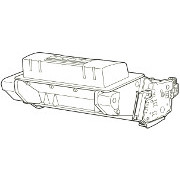
Life nominally 10,000 pages at 1p per page.
Life nominally 24,000 pages at 0.7p per page. P4015 / P4515 only.
Procopy Remanufactured Cartridges
Printer

P4014 & P4015 were made from 2008 to 2011 and replaced by M601 then M604 series.
-

E6B72A HP Laserjet Enterprise M606dn
Please email us to confirm availability
A4 Mono (B&W)
Automatic Duplex
LAN, USB
5,000 - 20,000 pages/month
25,000 page cartridge
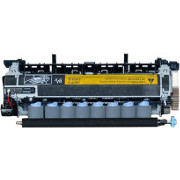
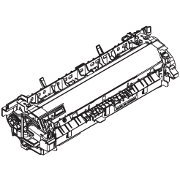
Maintenance Kit and Fuser
Fuser life nominally 225,000 pages. Contribution to running cost about 0.1p per page.
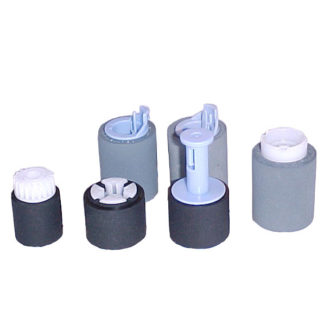
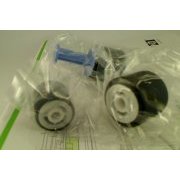
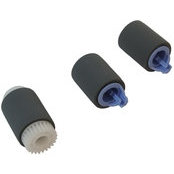
Paper Feed Repair
For printers that give "Error 13" a lot. Rollers are easily replaced
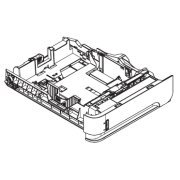
Replacement Cassette Tray
They arent lightly built but get dropped.

Transfer Roller
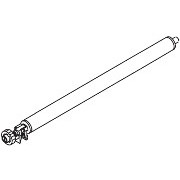
Faint print problems might suggest the transfer roller- check printer cleanliness first.
Accessories
HP Laserjet P4510 / 4515 Series
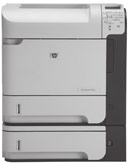
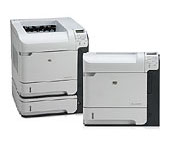
The LaserJet P4515 is a fast, reliable laser printer with an A4 paper path and a selection of paper handling options. Throughput is up to 62 pages per minute and the processor, memory and network abilities are sufficient to sustain that - it isn't an idle boast.
The P4515 is fastest of a family of three closely related designs, the P4014 , P4015 are a bit slower. Collectively they can be called the P4010 series. they were introduced in early 2008 (Some sources say February, others April) and replaced the LJ 4250 / 4350 series which they resemble internally. It was replaced in 2011 by the LaserJet Enterprise 600 M601, M602 and M603 (  ) giving much the same print speeds but a few improved features.
These are monochrome - black only - printers. Mono print has a couple of advantages over colour;
- It is undoubtedly cheaper to run on a cost per page basis.
- Mono printers are generally much less trouble.
P4515 printers (and others in the family) are unusually easy to maintain. Many of the parts are readily available on this site ( here) and all the parts for general maintenance simply clip in - there is no need for a screwdriver and with a bit of guidance the job can be done in under ten minutes.
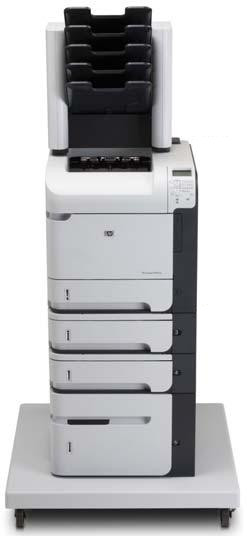
Given the potential throughput users will typically want, there are extra input trays and output options. Larger systems are implemented as a tower on a trolley which saves space.
Printer Family
The P4515 is part of a series of fairly high performance printers. There are actually two cut-down models called the P4014 and P4014n which have a throughput of 43 ppm and only take the smaller CC364A cartridges which deliver printing for about 1p per page.
The P4515 has three models all of which have a 100 sheet multipurpose tray (Tray 1) and a 500 sheet tray 2 sliding into the printer base. All models have an embedded JetDirect Gigabit Ethernet print server with IPSec security. The numeric keypad on the front of the printer allows jobs to be released only to people with a PIN code so printing can be secure in a corporate environment - and users of the printer can be clearly identified. The P4015 and P4515 printers also take the bigger CC364X cartridges which deliver printing for about 0.7p per page.
- P4014 - CB506A - 43 ppm , 96MB, MP tray and cassette, USB Port. Low capacity Cartridges
- P4014N - CB507A - 43 ppm , 128MB, MP tray and cassette, USB and Ethernet. Low capacity Cartridges
- P4015N - CB509A - 50ppm, 128MB, MP tray and cassette, USB and Ethernet. Numeric keys
- P4015TN - CB501A - 50ppm, 128MB, MP tray and 2 x cassettes, USB and Ethernet. Numeric keys
- P4015x - CB511A - 50ppm, 128MB, MP tray and 2 x cassettes, Duplex, USB and Ethernet. Numeric keys
- P4515N - CB514A - 60ppm, 128MB, MP tray and cassette, Ethernet with IPSec. Numeric keys
- P4515TN - CB515A - 60ppm, 128MB, MP tray and 2 x cassette trays, Ethernet with IPSec. Numeric keys
- P4515X - CB516A - 60ppm, 128MB, MP tray & 2 cassette trays, Duplex Ethernet with IPSec. Numeric keys
- P4515XM - CB517A - 60ppm, 128MB, MP tray & 2 cassette trays, Duplex, 5-bin Mailbox, Ethernet with IPSec. Numeric keys
Adding to the P4515X a 500 sheet tray, a 1500 sheet tray, a printer stand, a 5 bin mailbox and an EIO hard disk gives a high capacity printer as fast as most big copiers.
There are few mechanical differences between the P4014, P4015 and P4515 and indeed the network models all use the same formatter board. The difference in speed is simply controlled by the firmware installed. Users pay HP extra to get higher speed; it is just a tweak in the software but then that is the way of things.
The direct predecessor for these machines was the LJ 4350 which is still widely in service but has a rather lower throughput and isn't so energy efficient. These machines have a long ancestry.
Sensitive documents are protected by IPSec encryption and released with a PIN. Access can be controlled with 802.1X authentication and password protection.
HP were also supplying the A3 wide LJ 9040 /9050 series and the M5035 printer copier at the same time as the P4515. Despite the wide print path they don't compete on sheer speed. The P4515 has the speed to print a novel in a few minutes - or at least it has the throughput although it lacks the finishing machinery to bind it in covers. For fast production of corporate reports the P4015 is brilliant and the P4515 just a bit faster still.
HP may have suffered a setback at the introduction of the P4014, P4015 and P4515 series. The machines became fairly notorious for giving "Error 49" and sometimes just shutting down or going slow on print jobs. Both problems can be cured by a firmware upgrade.
Competitors to the P4515 are machines like the Lexmark MS812.
Overall these machines are intended for fast, low cost production runs of things like legal documents, finance agreements, engineering reports and documentation. HP have replaced the P4515 in the market with the M603, however there are good arguments for keeping these slightly older printers going. Their few remaining bad habits are known, parts are available from HP. If you want to save money there are parts available from brokers and cartridge refills can halve the already low running cost.
Control:
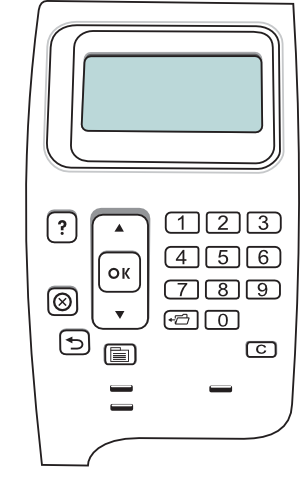
LCD panel with graphics and up to 4 lines of text. 10 key numeric input for control and access control PIN numbers. Embedded web server for remote control. HP Web Jetadmin for printer fleet management.
The control panel can be set to minimum, moderate, intermediate and maximum security.
Minimum locks the Configure Device sub-menus for System Setup, I/O and Resets menu which ordinary users normally have no need to touch.
Maximum locks the Information, Paper Handling, Configure Device and Diagnostics menus.
Duty Cycle:
HP suggest a maximum throughput of up to 275,000 pages per month. The recommended monthly print volume is 5,000 to 20,000 pages.
Print Resolution:
The print engine can deliver true 1200 x 1200 dpi. FastRes 1200, ProRes 1200. Actual resolution used depends on job.
If print quality has become a problem try a cleaning page - and if that doesn't work the printer probably needs more dramatic cleaning by hand. There are instructions on how to do this in the user manual.
Print Speed:
Up to 62 pages per minute for US letter paper, 60 ppm A4. First page out in under 9 seconds from ready mode. Completion of typical office jobs in under 16 seconds.
Scanner Abilities:
The P4515 family was not used directly as the basis for a multifunction machine however the M4555 MFP is based on the same engine, although it shares more with the M601 series.
Paper Handling:
Tray 1: Multipurpose tray for up to 100 sheets of special media in sizes A4, A5, letter, legal etc. Media sizes from 3x4 to 8.5x14 inches.
Tray 2: Built into the printer base: Paper with sizes as for tray 1
Tray 3, 4, 5: Optionally under the printer: Up to 500 sheets of paper as for tray 1.
Face Down Tray:
500 sheet top output bin. Optional 5-bin mailbox with sorting capability. Face-up tray with a capacity up to 100 sheets.
Face Up Tray:
100 Sheet rear output bin. Used for heavier media such as envelopes and cards.
Processor:
Believed to be a Motorola Coldfire V5x running at 540MHz. Evidence is slim however, just one brochure mentions this; see the formatter article.
Memory:
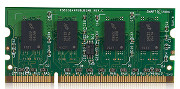
Printers ship with 128MB expandable to 640MB via one open 144-pin 32-bit DDR2 DIMM slot on the formatter board.
Laser printers use memory as a communications buffer and workspace but mainly to perform the raster image processing task where the print language is converted into a bitmap image of the page about to be printed. An A4 image printed at 1200 dpi can use 16 million pixels and at 8 bits each that could in principle be 128 megabytes of RAM. That would be rare even if it were possible. Most laser printers are not capable of 8 bit 256 shade grays (most are capable of two: black and white). Neither user guide nor service manual clarify the abilities of the laser susbsytem.
These printers ship with sufficient memory for most tasks but perhaps not enough to print all full-page pictures or bitmapped PDFs for instance. If a job takes excessive amounts of time or the printer reports memory errors such as "21 PAGE TOO COMPLEX" then more memory is likely to help.
Note that DIMMs require static handling precautions. Note also that with just one open slot an existing DIMM will have to be discarded if the printer is upgraded again.
The printer supports direct printing of PDF files when 128MB of memory is present but the User Guide suggests that for the best performance memory should be upgraded to at least 192MB.
The memory used in these printers is not compatible with that from older HP products. The same 144 pin DIMM is used in the M601 series.
When more memory has been installed in the printer the installed memory entry in the driver of the computer(s) that use the printer needs to be changed, otherwise the computer will not make best use of the new memory. If memory is downgraded it is particularly important to decrease the memory entry in the driver, otherwise jobs are likely to hang.
There are also:
- 2 x internal USB Ports for adding fonts, languages and forms handling software.
- Printing a configuration page will show what is actually installed.
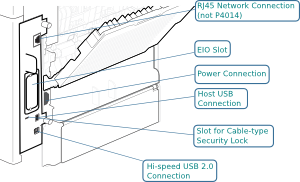
Interface:
All models of this printer come with an embedded network port.
- USB 2.0 port for simple connections.
- External and internal USB for 3rd Party connections.
- 1 EIO slot.
Network:
All models have an embedded JetDirect Gigabit Ethernet with IPSec.
Network Protocols:
IPv4/IPv6, Port 9100, LPD, IPP, Secure-IPP, FTP, HTTP, HTTPS, BOOTP/DHCP, DHCPv6, Apple Bonjour, WS Discovery, etc.
Print Languages:
PCL5e, PCL6, PostScript L3 emulation, Direct PDF.
HP Universal print driver.
System Compatibility:
Windows XP, Certified for Vista, Mac OS X v10.2.8 and later. Via networks Red-Hat and Suse Linux. Most Linux and other systems should be compatible via PostScript.
Power:
Models for 220 volt UK and European and 110 Volt US, Canada and Japan use.
Power requirements:
- 100 to 127 volts (± 10%) 50/60 Hz (± 2 Hz) Rated current 10.7 Amps
- 220 to 240 volts (± 10%) 50/60 Hz (± 2 Hz) Rated current 5.7 Amps
Uses a right-angled power cord such as 8121-046.
Power Consumption:
Power consumption is largely explained by network monitoring in the sleep state and is less than 13 watts. In the Active printing state power is partly consumed by motors but most significant is the fuser so faster machines consume more power.
Off - 0 Watts, Sleep - 12 Watts, Ready - 20 Watts.
Active Printing: P4010 43ppm - 800 Watts, P4015 50ppm - 840 Watts, P4515 60ppm - 910 Watts.
The user manual actually says:
The Off current is Less than 0.1W - this might be the cable and power filter?
Sleep is around 13 Watts, that is actually quite high, probably a result of supporting gigabit ethernet. Switching the machine off at the power point when the office is closed will save a few pence per day and some carbon emissions.
Environment:
These printers have an economy printing mode "EconoMode" which reduces the quantity of toner used at the cost of some reduction in print quality. The lighter print saves money for tasks like proof-reading.
HP's user manual warns that EconoMode should not be set on continually because there is a risk that the toner supply might then outlast the mechanical parts of print cartridges.
Economode will normally be set on or off by the user in the Windows Print Driver Print Quality Tab or in the Macintosh Configuration Settings Economode and Toner Density tab.
Sleep mode reduces the power consumption to 12 watts. The display dims and the printer shuts down circuits that aren't needed to detect new data.
12 watts is actually quite substantial and is probably the result of running a gigabit ethernet card. If the printer genuinely won't be used overnight there is a small saving in turning it off at the wall. It is probably more significant to turn off computers.
The sleep delay can be set in CONFIGURE DEVICE and SYSTEM SETUP and SLEEP DELAY.
A Wake Time can be set if sleep mode is on so that the warm up and calibration time doesn't interfere with use.
Dimensions:
Size varies by model with the TN and X models being larger because of the extra trays (H, D, W):
- P4010 and P4510 Series base and n model: 394 mm (15.5 in) 4515 mm (17.8 in) 425 mm (16.75 in).
- P4010 and P4510 Series tn models: 514 mm (20.25 in) 451 mm (17.8 in) 425 mm (16.75 in).
- P4010 and P4510 Series x models: 514 mm (20.25 in) 533 mm (21.0 in) 425 mm (16.75 in).
With trays open:
- P4010 and P4510 Series base and n models: 394 mm (15.5 in) 864 mm (34.0 in) 425 mm (16.75 in)
- P4010 and P4510 Series tn models: 514 mm (20.25 in) 864 mm (34.0 in) 425 mm (16.75 in)
- P4010 and P4510 Series x models: 514 mm (20.25 in) 864 mm (34.0 in) 425 mm (16.75 in)
- P4510 Series xm model: 955 mm (37.6 in) 902 mm (35.5 in) 425 mm (16.75 in)
Weight:
HP LaserJet P4010 and P4510 Series base and n models 23.6 kg (51.9 lb)
HP LaserJet P4010 and P4510 Series tn models 30.4 kg (66.8 lb)
HP LaserJet P4010 and P4510 Series x models 32.6 kg (71.7 lb)
Consumables:
These printers are typical of HP products in using cartridges that have toner and drum in a single unit. If the printer is heavily used the fuser and pickup rollers will also require periodic replacement, but that is much less frequent and costs only about 0.1p per page - although the £230 cost of a maintenance kit seems steep at the time it lasts something like 225,000 pages.
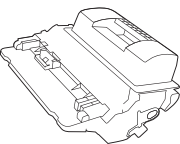
Toner cartridges are the costly item in laser printers; by the time you have bought ten cartridges you will probably have spent more on "ink" than on the printer. That is broadly true of all printers. Most inkjets are considerably worse in cartridge cost. What is unusual about these printers is the cartridge size and economy; the P4015 / P4515 cartridge can last about 24,000 pages and can deliver print for well under 1p per page which is one of the lowest costs in the industry.
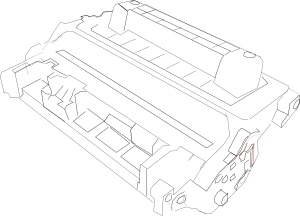 CC364A 10,000 page cartridge | 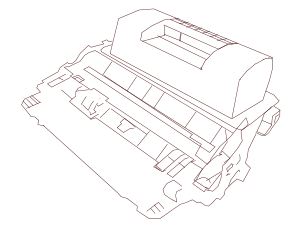 CC364X 24,000 page cartridge |
The P4014 is different to the P4015 and P4515 because it takes only the lower capacity "64A" cartridges. It cannot take the large "64X" cartridges which have a more protuberant upper toner hopper which the P4014 top cover doesn't allow for. The reason is quite simply that the P4014 was sold as a different "value proposition"; the printer was cheaper, the cartridges are smaller but prove more costly in the long run.
The P4015 and P4515 have both cartridge sizes available. The cartridges are quite expensive
CC364A has a life of 10,000 pages at 5% yield usage and a typical life up to 5 months (aka the "64A" cartridge)
CC364X has a life of 24,000 pages at 5% yield usage and a typical life of up to 12 months. (aka the "64X" cartridge)
Yields are declared in accordance with ISO/IEC 19752. ie 5% page cover and not all single pages.The Usage life is based on a usage pattern of 2,000 pages per month which is lower than HPs recommended monthly use but in line with the level of use found in smaller offices.
The charge of toner in a CC364X cartridge is just over a kilo - ten times what is found in small-office printers. HP sell CC364XD twin pack toners at about £330, which works out at about 0.7p per page.
The photoconductive drum is part of the cartridge. They do last longer than the cartridges and this allows some companies to offer low cost refills.
Some customers are going to simply accept that printer makers get a substantial part of their revenue from cartridges and that bought in the twin-pack these machines are amongst the most economical to use. Furthermore the maintenance kits add only 01.p per page to the page cost, so these printers are capable of producing a million or more pages at about 0.8p per page.
Refills and Compatibles
Refilled and compatible cartridges are obviously going to be a temptation with a high-volume production printer like the P4515.
Refill components specialist Uninet announced a kit of parts to rebuild the CC364x cartridges within 6 months of HP introducing the printers. The instruction sheet for doing it is fairly easily found on the Internet.
Refilled cartridges certainly can lower the up-front cost of printing, halving it in some cases. A dramatic reduction in the cost of toner can change the value-proposition of the printer allowing them to be used as high volume production printers for digital publishing.
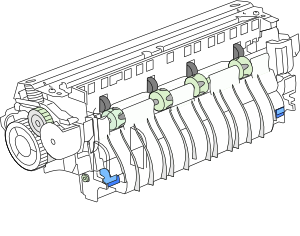
Fuser:
The fuser in a laser printer makes toner powder adhere to the page using a combination of heat and pressure. The fuser in the P4014/4015/4515 series continues the ideas used in the LJ 4000, 4100, 4200 and 4300 of using a ceramic heater and foil sleeve to provide instantaneous heat to the page. The design is highly reliable, HP suggest a life of 225,000 pages which is at the upper end of what can be achieved with a small fuser unit.
The P4515 fuser continues a tradition stated with the LaserJet-4200, it just clips in and can be changed without a screwdriver. In fact the fuser looks very similar, with the only self evident difference being black instead of white plastic guides.
CB506-67902 - Fuser 220 -240 Volt for P4014/4015/4515. Page yield 225,000.
CB506-67901 - Fuser 110 -120 Volt for P4014/4015/4515. Page yield 225,000.
Fusers draw a lot of power so they are driven directly from the mains power delivered to the printer. In the US, Canada and Japan supplies of about 120 Volts are normal. In the UK, EU and Australia supplies around 220 Volts are normal and a 120 Volt device is very unusual. Buy the right fuser for your printer.
In March 2010 there were some 110 Volt fusers in UK distribution; they do sometimes have a use where a special low voltage is preferred such as construction sites.
The fuser in these printers counts as a customer field replaceable unit ( a slight disadvantage is that HP won't send an engineer out to change a fuser and if you demand it then it's chargeable).

Maintenance Kit:
The message "PERFORM PRINTER MAINTENANCE" appears after printing 225,000 pages. The message can be temporarily cleared in the resets submenu and will recur after a further 10,000 pages. (The maintenance interval can be changed if you are convinced that will be helpful).
The customer-oriented maintenance kit for 220 Volt printers should be called CB389A however the engineering part number CB389-67901 is very often used
HP seem to have changed the formulation of the maintenance kits several times,
The current CB389A maintenance kit contains
| The maintenance kit used to include :
|
We lost the MP tray roller - quite a lot of web-site pictures still show some odd parts that you won't get with an HP kit.
HP include a transfer roller in the kit. If the print has been fading then changing the roller is a possible fix - they tend to pick up paper dust turning them grey-white or toner powder which isn't so visible because they are black anyway. Some technicians save money by just cleaning up the existing roller when the need arises - avoid handling the rubber of the roller itself because that will damage its static properties and use a stiffish paintbrush to remove the dust.
CB389-67901 - Maintenance Kit with 220 Volt fuser - (CB389-67901 aka CB389A in the manual)
CB388A - Maintenance Kit with 110 Volt fuser
After fitting a maintenance kit the relevant counter has to be reset. Definitive instructions are in the user manual but briefly:
1 Turn the printer power off, wait, then turn it back on.
2 When the memory count XXXMB appears on the control panel, press and hold the "OK" button for about 10 seconds until all three control panel lights flash once and stay on. Release the button.
3 Use the up arrow to scroll to "NEW MAINTENANCE KIT"
4 Press "OK"
HP suggest not using this procedure just to disable the maintenance kit message. That will cause unpredictable trouble such as feed errors and sudden fuser failure when the kit is subsequently forgotten.
There is more on the maintenance kits and the reset procedures under the heading CB388A.
Spares:
Most spares are the same for all the printers in the series - the P4014, P4015 and P4515. The printer is likely to need a new fuser maintenance kit at intervals of 225,000 which will also provide a new set of rollers. The long life fusers may outlast several multipurpose and cassette roller kits depending on how the printer is used
The list below shows frequently used parts that are common in UK distribution. 
CB506-67905 Multipurpose Kit for tray 1. Used in P4014, P4015, P4515. Contains pickup roller, feed roller and separation roller- CB506-67905 replaces distribution of separate RL1-1641, RL1-1663 and RL1-1654(some parts are only intermittently available separately) .
CB506-67904 - Cassette Roller Kit for trays 2, 3, 4, 5, and 6. Pickup, feed, and separation rollers (actually 1 pickup roller RM1-0036 and 2 feed rollers RM1-0037 and 1 pickup roller) - kit CB506-67904
RM1-0036 - Tray 2 and 3 Pickup Roller - RM1-0036-020CN formerly RM1-0036-000CN. Grey rubber roller on a white cylinder with a 24 tooth gear at one end.
RM1-0037 - Tray Feed/Separation Rollers - RM1-0037-020CN. Grey rubber roller on a blue plastic shaft. Used in a great many LJ4200 /4300 series and CLJ 4700 and so forth.
CB506-67903 - Transfer Roller Kit. Long roller charged to pull toner from drum to paper. - CB506-67903
RM1-4527 - Paper Feed Roller assembly for MP tray 1 on P4014, P4105, P4515 - RM1-4527-000CN
RL1-1641 - Tray 1 Pick Up Roller - RL1-1641-000CN. HP now say buy the CB506-67905.
RL1-1663 - Tray 1 Feed Roller - RL1-1663-000CN. HP now say buy the CB506-67905.
RL1-1654 - Tray 1 Separation Roller - RL1-1654-000CN. HP now say buy the CB506-67905.
RC1-0198 - Tension Spring for Lifter Drive Assembly - RC1-0198-000CN
RC1-0264 - Feed roller shaft bushing. Bushing supporting the feed roller shaft. Used on the LaserJet 4 and many of its descendants including the P4014, P4015, P4514. - RC1-0264-000CN
RM1-4562 - Paper feed delivery drive for pick-up roller and feed roller. Used in P4014, P4015, P4514 - RM1-4562-000CN
RM1-5465 Laser Scanner Assy - P4014, P4015, P4515 - RM1-5465-000CN
WG8-5624 Photosensor - TLP1241 used in a huge number of printers - WG8-5624-000CN
RM1-4582 - DC Controller PCB. Used in the P4014, P4015, P4515 - RM1-4582-070CN
CB437-67902 - Formatter / Main Logic for base model (P4014)
CB438-67902 - Formatter / Main Logic for network models. Used in the P4014N, DN, P4015N, DN, TN, X, P4515N, TN, X, XM
CB506-90950 Service manual does not seem to be available in the UK. However most people will probably be able to find a PDF copy using a search engine.
More parts that might be helpful in repairing these printers are listed here and can be bought from the catalog.
Fault Finding:
These are mono printers with a one-piece print cartridge so most faults will be cleared by changing the cartridge. Problems with the fuser will normally give "50" errors and problems with paper feeding "13" errors.
If print quality seems to be an issue the printer can produce a "cleaning page". Remove paper from tray 1.
1 Menu - CONFIGURE DEVICE - PRINT QUALITY - CREATE CLEANING PAGE -
2 When the page emerges put it face down in Tray 1
3 Then PROCESS CLEANING PAGE.
If the cleaning page doesn't work the printer will need more substantive attempts at cleaning using a dry cloth, a slightly damp cloth or a toner-grade vacuum cleaner.
To restore factory settings:
Menu - CONFIGURE DEVICE - RESETS - RESTORE FACTORY SETTINGS
Error Messages:
10.94.YY REMOVE SHIPPING LOCKS FROM CARTRIDGE - the orange tab or plastic insert has not been removed from the cartridge.
Remove whichever orange element has not been dealt with.
10.XX.YY SUPPLY MEMORY ERROR - There is no memory chip on the cartridge or it is defective. The link through plug J74 to the DC controller may not be working.
Is the cartridge from HP and if not is the chip supposed to work? If the cartridge is an HP original turn the printer off, reseat the cartridge, turn the printer on and see if the message clears. If it does not is there any possibility the cartridge is counterfeit? HP have a hotline to spot counterfeits, they will want the vendoe name and serial number.
11.XX INTERNAL CLOCK ERROR - the real time clock is wrong. The prompt appears when the printer is turned on.
At a wild guess the battery for the clock is flat. Printers with a clock are a relatively new idea but the machine needs to know the time, for instance to wake up from sleep mode.
13.JJ.NT DEVICE WARNING - An external device such as a tray sent a warning.
The service manual says "No action is necessary" - obviously if it happens a lot it raises some questions.
13.JJ.NT JAM IN
If the rollers have been replaced they may not be seated correctly. If the message won't clear and the rollers seem correct then look for a sensor that is stuck. A manual sensor check may help. If these are all correct suspect the tray solenoid.
13.20.00 JAM INSIDE
Paper failed to reach the relevant sensor in the given time. Remove the misfed paper. If the fault recurs look for obstructions such as stray paper fragments or labels. Do a manual sensor test.
13.JJ.NT PAPER JAM OPEN INPUT TRAYS - a jam occurred in an input tray.
Open the trays, check for misfeeds, then check the trays are properly closed.
"13" errors are sometimes straightforward - the cause of the jam is visible. However they can be stubborn and repeat. If the printer won't feed from the cassette will it feed from the multipurpose tray or vice versa. Will it feed too the rear face-down tray if there is one?
Try turning the paper stack the other way up and if that doesn't work try it the other way round.
Look at the feed rollers. Modern feed rollers are usually a soft grey rubber and have a textured surface. If the rollers were one textured and have lost the pattern they won't work properly.
21 PAGE TOO COMPLEX -alternates with "To Continue Press OK" - not enough memory.
If this happens often then the print jobs concerned are too complex for the existing printer memory. These printers ship with a large memory but not sufficient to deal with (say) a couple of sides of really complex imagery. One possibility to make a job print is to reduce the resolution. If the error often happens with jobs that must print at high quality larger DIMM unit needs to be installed to extend the memory. See Accessories below.
22 EIO X BUFFER OVERFLOW "To Continue Press OK" - Data will be lost
Probably an unexpected and unwanted print protocol. Something is sending data intended for another printer?
22 EMBEDDED I/O BUFFER OVERFLOW "To Continue Press OK" - Too much data sent for the internal JetDirect
22 USB I/O BUFFER OVERFLOW "To Continue Press OK" - Too much data sent for the internal JetDirect.
The "22" errors are odd. If the printer can't store a packet it might either not request it or acknowledge it.
40 EIO X BAD TRANSMISSION "To Continue Press OK" - Probably a broken connection
40 EMBEDDED I/O BAD TRANSMISSION "To Continue Press OK" - Probably a broken connection
41.3 UNEXPECTED SIZE IN TRAY - scroll to Tray XX Size= and adjust then check tray guides etc.
41.X ERROR "To Continue Press OK" - A temporary print error - the printer should recover and reprint.
49.XXXX ERROR "To Continue turn off then on" - Firmware error.
Turn the machine off and leave it off for a while (HP suggest 20 minutes but that seems unnecessary - 10 seconds will do in most cases)
50.X Fuser Error - The fuser might recover with power cycling
50.1 Fuser Error - Low fuser temperature.
50.2 Fuser Warm Up slow. Low voltage issue? Also look for weird things like material stuck to the foil. Could be fuser heater failure.
50.3 High Fuser Temperature - might suggest a ventilation problem, an issue in the thermistor circuit or worst of all breakdown of the triac that control fuser heat. May clear itself
50.4 Faulty Fuser
Turn off and leave for 20 minutes. If the message persists remove accessories and options and try without them in the hopes that they are creating the issue.
Error 50 generally points to the need for a new fuser. For ordering details see above.
51.XY ERROR - Another temporary error message. Turn the power off and then on.
52.XY ERROR - and another
53.XY.ZZ CHECK RAM DIMM SLOT
54.XX ERROR - Probably a stuck or dirty sensor.
55.XX.YY DC CONTROLLER ERROR - hopefully clears when the power is cycled
56.XX ERROR - Incorrect I/O request. Cycle the power.
57.XX ERROR - Problem with the fans. Find the fan that has stalled.
58.XX ERROR - apparently could be memory tag, air sensor or voltage (weird)
59.XY ERROR - another temporary problem that should clear when power is cycled.
60.X ERROR - Problem with Tray X lift mechanism. Probably stray paper fragment.
62 NO SYSTEM - The printer OS is corrupt (Oh hell, will it download firmware to flash?)
66.XY.ZZ INPUT DEVICE ERROR - External paper handling controller found a problem. Check cables.
As usual this list is not definitive (and at the moment it is not complete) HP's online version is here at March 2010 and if it moves do a web search for "11 INTERNAL CLOCK ERROR"
Defects Ruler:
Where there is a vertical mark down a page there is often some discernible "pitch" to it. This gives a hint as to which roller has the defect.
Tray 1 - Pickup roller - 63 mm
Tray 1 - Feed Roller - 79 mm
Tray 1 - Separation Roller - 79 mm
OPC Drum: 94 mm
PCR - 37.7 mm
Transfer Roller - 47 mm
Upper fuser sleeve - 94 mm
Lower fuser pressure roller - 94 mm
Whats-in-the-box:
Printer, Right angled power cord, control panel overlay, software and documentation on CD-ROM, print cartridge, getting started guide, support flyer. With the P4515tn there is an extra tray and with the P4515x there is both a tray and a automatic duplex unit. See the list of models at the top of this page for what to expect.
Warranty:
The user manual says One year limited warranty.
Notice that HP treats certain parts as Customer Self Repair (CSR) - this helps minimize the repair time and cuts the cost of delivering warranty. These parts are usually easy to replace. Note that if you demand HP or the vendor of the printer replace these parts for you that may be billable. If these terms do not meet your needs then take up one of the service agreements.
Extended warranty provides hardware maintenance cover for a 1- to 3-year period from date of the product purchase. HP Support packs must be purchased within the stated factory warranty.
If the equipment needs to be returned by courier see the user manual.
Services:
HP offers:
- Installation Service with Network Configuration.
- Managed Print Services.
- Extended Warranty.
- On-site service agreements.
- Next-day onsite service.
- Weekly (Volume) on-site service which provides scheduled weekly on-site visits for customers with more than 25 products including computers, plotters and printers.
Options and Accessories:
These printers have a substantial range of expansion options and accessories. HP sell several variants of each printer, models end with a letter indicating the extra features:
- n - Ethernet network connection; an embedded gigabit devices on these printers
- dn - Duplexer provided and a network connection
- tn - Extra tray and a network connection
- x - Network, tray and duplex - they used to be called (dtn)
- xm - Network tray, duplex and a mailbox
It is generally more economical and convenient to buy a printer complete with at least some of the options wanted than to buy them separately.
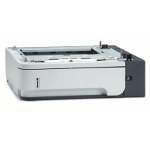
- CB518A - CB518-67901. Optional 500-sheet feeder tray. Up to four of these can be used. Paper sizes: Letter, A4, Legal, A5, B5 (JIS), Executive, and 8.5 x 13 inch.
- CB523A - CB523-67901. Optional 1,500-sheet feeder. Holds Letter, Legal, and A4 paper sizes. The last unit in a stack of trays.
- CB519A - CB519-67901. Auto Duplexer. allows printing on both sides of the paper. The auto-duplexer intercepts pages as they emerge from the fuser, reverses the side then re-inserts them in the paper feed. Hence it's odd shape.
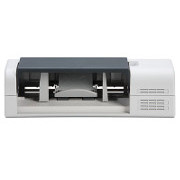
- CB524A - CB524-67901. Envelope feeder. Holds up to 75 envelopes.
- CB522A - CB522-67901. 500-sheet stapler/ stacker. Staples up to 15 sheets of paper Allows automatic job finishing.
- CB521A - CB521-67901. 500-sheet stacker. Provides additional output bins that hold 500 sheets.
- Q3216A - Q3216-60500 - 1,000-staple cartridge. Provides three staple cartridges.
- Q3216-60501 - Stapler unit as a replacement if there is a stapler failure .
- CB520A - CB520-67901 - HP 5-bin mailbox. Five output bins and used to sort print jobs.
- CB525A - Printer stand - Stabiliser and stand with casters for when multiple optional trays are installed.
Copyright G & J Huskinson & MindMachine Associates Ltd 2013, 2015. Some pictures derived from HP User and Service guides. These technical pages do not constitute an offer for sale; just our knowledge at the time of writing. See the catalog. Sales pages on this Web site use cookies to store user information. We also use Google Analytics to track site useage patterns.